

You go to empty your Recycle Bin, and the second you hit "Empty Recycle Bin," a wave of dread hits. That file — the one you actually needed — is gone.
Or maybe you're like most people and didn't even notice a file was missing until days (or weeks) after you cleared the bin. Either way, the question is the same: can I get it back?
The short answer is: yes, in most cases. And this guide will show you exactly how — whether the Recycle Bin still has the file, you just emptied it, or you used Shift+Delete to skip it entirely.
▎How the Windows Recycle Bin Actually Works
Think of the Recycle Bin as a waiting room for deleted files. When you right-click a file and hit "Delete," Windows doesn't actually remove the data — it moves the file to this waiting room.
The file stays there until one of two things happens:
- You restore the file (putting it back where it came from)
- You empty the Recycle Bin (which tells Windows to mark that storage space as available for new data)
Even after you empty the bin, the actual file data usually remains on your hard drive. It's just that Windows no longer knows where to find it. This is why recovery is often possible — the data is still physically there, waiting to be found.
▎Scenario 1: The File Is Still in the Recycle Bin
Let's start with the easy one. If you haven't emptied the Recycle Bin recently, your file might just be sitting there.
How to check and restore:
- Double-click the Recycle Bin icon on your desktop
- Look through the list of deleted files — use the search bar in the top-right corner if there are too many
- Once you find the file, right-click it and select Restore
That's it. The file will reappear in the folder it was originally deleted from.
💡 Tip: If you remember roughly when you deleted the file, click the "Date deleted" column header to sort by date. This makes finding it much faster.
▎Scenario 2: You Just Emptied the Recycle Bin
First, stop what you're doing.The less you use your computer right now, the better. Every new file you save, every webpage you visit (which creates cached files), every download — all of it writes data to your drive and could overwrite the file you're trying to recover.
▶ Immediate steps:
- Close all unnecessary programs — especially anything that saves files automatically (Word, email clients, cloud sync)
- Don't download or install anything — not yet, at least
- Don't restart your computer — this writes temporary files during the boot process
▶ Recovery method: Use data recovery software
This is where dedicated recovery software comes in. Data Recovery Master is designed for exactly this scenario — it scans your drive at the raw data level and finds files that Windows can no longer see, even after the Recycle Bin has been emptied.
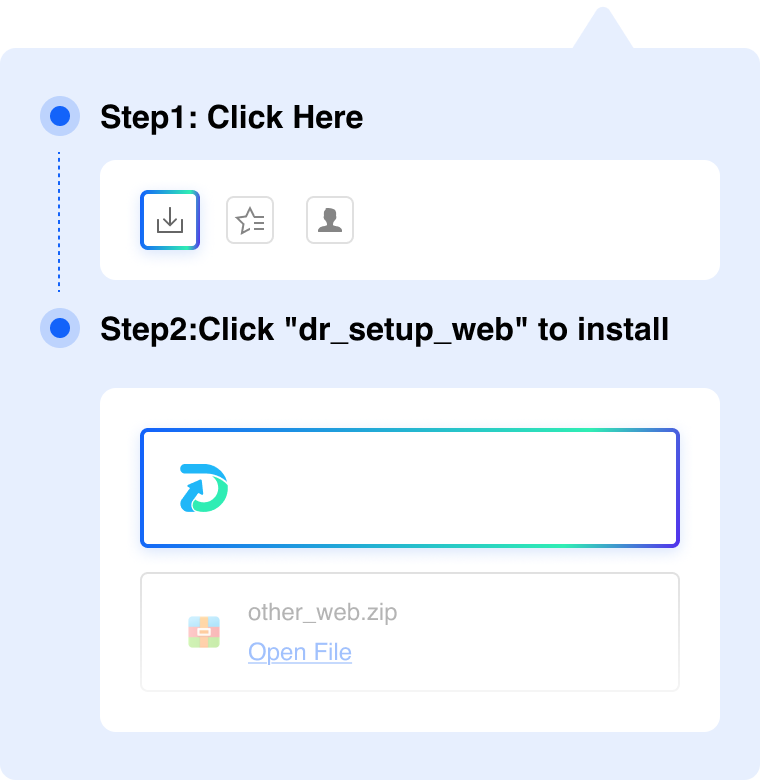
▷ Step 1 — Download Data Recovery Master Go to recovery.nextvantage.net and download the installer.

▷ Step 2 — Select your drive Open the program. You'll see a list of drives and storage locations. Select the drive where the deleted file was stored.
▷ Step 3 — Run a Quick Scan Click Scan to start with a Quick Scan. This takes just seconds and is perfect for recently deleted files (within the last few hours to days).
▷ Step 4 — Find and preview your file Browse the scan results or use the search bar to find your file by name or extension. Double-click to preview it — this works for documents, photos, videos, and more.
▷ Step 5 — Recover Select the file and click Recover. Save it to a different drive or location — a USB drive is ideal. Don't save it back to the same drive you just scanned.
⚠️ Important: Always save recovered files to a different location than the one being scanned. Writing new data to the scanned drive could overwrite other recoverable files.
▎Scenario 3: You Emptied the Recycle Bin a While Ago
If days or weeks have passed since you emptied the bin, the Quick Scan might not be enough. That's okay — there's still a good chance the file is recoverable, as long as that part of the drive hasn't been reused.
Switch to Deep Scan:
This will thoroughly search every sector of your drive — including areas marked as "free space"
Deep Scan takes longer (typically 15–60 minutes depending on your drive size), but it can find files deleted weeks or even months ago
💡 Note: The larger your hard drive and the more data on it, the longer the Deep Scan takes. Be patient and let it run to completion.
▎Scenario 4: The Recycle Bin Icon Is Missing from Your Desktop
Can't find the Recycle Bin on your desktop? It might have been hidden. Here's how to get it back:
- Right-click on any empty space on your desktop
- Select View → Show desktop icons
- The Recycle Bin (along with other icons) should reappear
If that doesn't work:
- Click Start → type Recycle Bin in the search bar
- It should appear in the search results — you can drag it back to your desktop from there
Still no luck? The Recycle Bin might be disabled. Here's how to re-enable it:
- Right-click the Recycle Bin → Properties
- Select your drive
- Select Custom size and enter a maximum size (we recommend 5,000–10,000 MB)
- Make sure Don't move files to the Recycle Bin is unchecked
- Click Apply and OK
▎FAQ
Can I recover files after emptying the Recycle Bin?
Yes, in most cases. When you empty the Recycle Bin, Windows only removes the file's reference from the file system — the actual data usually remains on your drive. Data recovery software like Data Recovery Master can scan for and recover these "invisible" files.
How long after emptying the Recycle Bin can I still recover files?
There's no fixed time limit. What matters is whether the storage space has been reused. If you emptied the bin yesterday and haven't used your computer much since, recovery chances are very high. If it's been months and you've been actively using the drive, the chances drop significantly — but it's still worth trying with a Deep Scan.
Does this work on both Windows 10 and Windows 11?
Yes. Data Recovery Master works on Windows 7, 8, 10, and 11.
Can I recover files from the Recycle Bin on an external drive?
When you delete files from an external drive (USB, external hard drive, SD card), they typically bypass the Recycle Bin entirely. But the recovery process is the same — use data recovery software to scan the external drive and restore the files.
What if I already saved new files to the drive?
It's still worth scanning. New files may not have overwritten the exact same storage sectors as your deleted file. A Deep Scan can check every sector of the drive and recover files even from partially overwritten areas.